SeeClap Launcher for Android TV

On Android TV and Google TV running Android 7 or later, SeeClap Launcher brings your favorite apps together on the home screen. SeeClap always has the first tile.

We recommend installing the full edition with Claude Code or Codex on your computer. The assistant verifies the signature and guides the installation. You can then set up the Home button and a remote shortcut on supported TVs. Ask the assistant for a deeper clean-up if you need it.

Install the full edition with an assistant
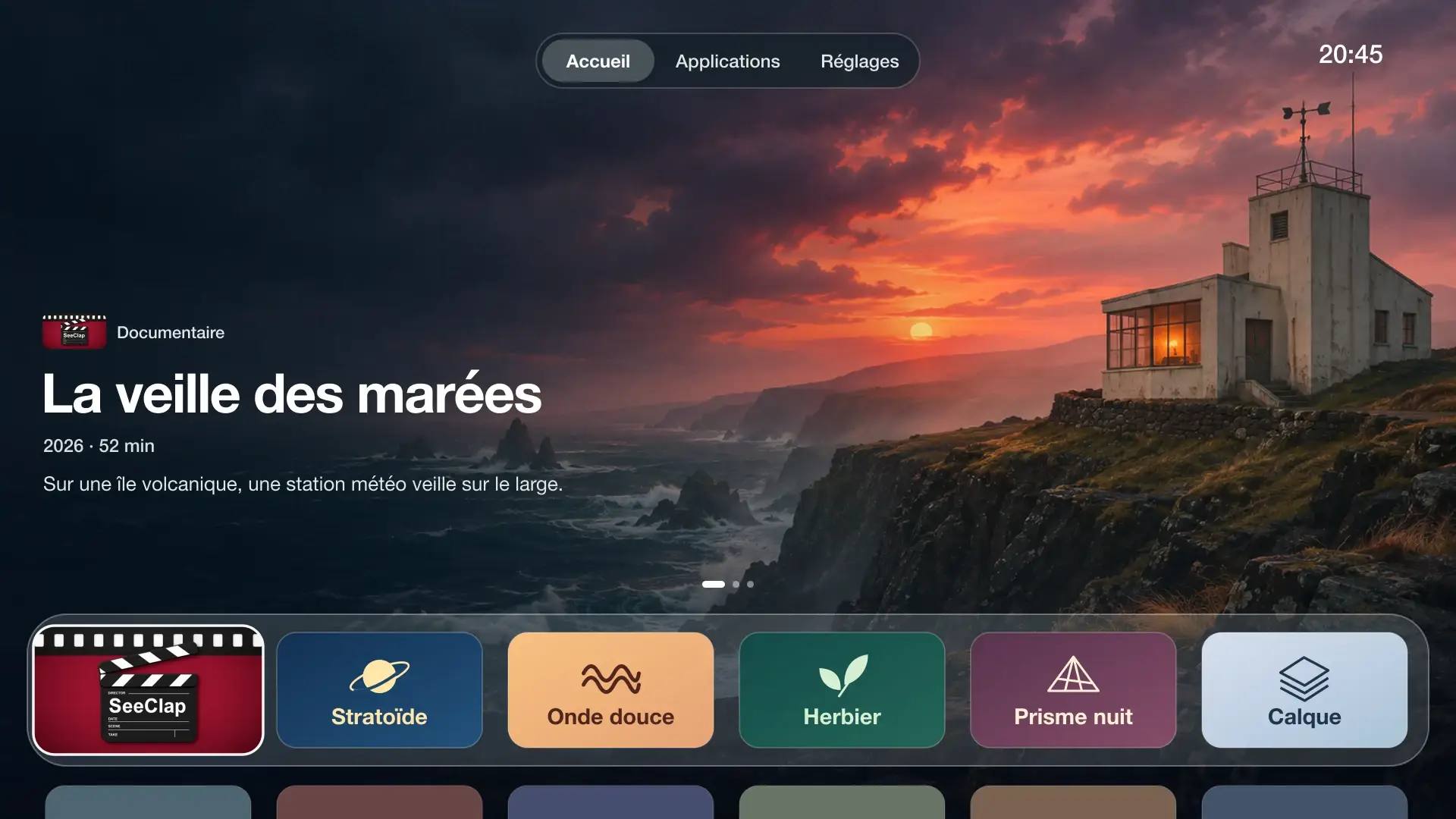
Home screen mockup. The featured program and all apps except SeeClap are fictional.

Install the full edition with an assistant

  1. Get your computer ready

    Connect your TV and computer to the same private Wi-Fi network. On your computer, open your installed copy of Claude Code or Codex with access to the local terminal. Copy the message below and paste it into the chat. The assistant will guide you one step at a time.

    Show message
    Follow https://raw.githubusercontent.com/SeeAppsStudio/seeclap-android-launcher/main/skills/seeclap-tv/SKILL.md to install the official, signed version of SeeClap Launcher on my TV first. Guide me through the steps with my remote, then offer to clear my app caches and wait for my confirmation before doing so.
    Please install the full edition.
  2. Show developer options

    • From the TV’s home screen, select the gear icon to open Settings.
    • Choose “System” or “Device Preferences”, then “About”.
    • Scroll down to “Android TV OS build” or “Build number”.
    • Press OK seven times until you see a message confirming developer mode.
    • Go back one menu and open “Developer options”.
  3. Pair your computer with the TV

    • If “Wireless debugging” is available, open it and turn it on.
    • Select “Pair device with pairing code” and leave that window open.
    • Give the assistant the address and port shown.
    • Enter the temporary code in your computer’s terminal when prompted.
    • If the assistant then asks for the connection address and port, go back to the “Wireless debugging” screen to find them.

    If “Wireless debugging” is missing, look for “Network debugging”. If your TV has it, turn it on, give the assistant the address shown and approve your computer on the TV. Otherwise, use the Downloader installation steps. Downloader

  4. Install the launcher

    Check that the TV model named by the assistant matches yours. If the TV asks, allow your computer to connect. The assistant verifies the APK signature and waits for your approval to install it. Then open SeeClap Launcher. If you want to clear your app caches, you can ask to see how much free space the TV reports before and after.

  5. Close the connection

    On your TV, select your computer in the list of paired devices and choose “Forget” if available. Turn off the debugging option you enabled. SeeClap Launcher stays installed.

Android help

Install the light edition with Downloader

Code to enter in Downloader6812755

1Install Downloader

On your TV, open Google Play and search for “Downloader by AFTVnews”. Install the app, then open it.

2Enter the code

In the address field, enter the code shown on this page and choose “Go”. Wait for AFTVnews to redirect you to the official file. If the redirect stalls, enter the direct address below.

3Allow and install

On Android 8 or later, allow Downloader to install apps only if Android asks. On Android 7, temporarily turn on “Unknown sources”. Return to the file, choose “Install”, then “Open”. Afterward, turn the permission off in your TV’s settings.

These diagrams are examples. The menus may look different on your TV.

Downloader can install the app without debugging. If “Install unknown apps” is hidden and your TV asks you to turn on developer mode, follow just step 2, then return to Downloader. Show developer options

First launch

  1. Select Get started. Use Left and Right to preview the themes, then press OK. Automatic follows your TV’s theme. You can also choose Light or Dark.
  2. If SeeClap is missing, choose Install or Later. The launcher opens the available store (Google Play or Amazon on Fire TV). The APK edition can also download SeeClap from its official site and verify its signature. Confirm the installation in Android. The Play edition uses the store for installs and updates.
  3. Choose up to five other favorites with the default layout, or four with larger tiles. Select Continue to save your selection.
  4. If Android offers a default Home app, choose SeeClap Launcher. Otherwise, open it from the TV’s apps. With the full edition, you can enable its Home-button service yourself in Accessibility settings.
  5. Once the service is enabled in the full edition, choose a remote button to open SeeClap.
  6. Run the optional clean-up or choose Continue, then select Go to Home. To revisit your choices, open Settings › Run setup again.
With a USB drive
  1. Download SeeClap Launcher for your TV (APK).
  2. Copy it to a USB drive. Plug the drive into the TV and open the file with the TV’s file manager.
  3. If Android asks, allow the installation and turn that permission off again afterward. Open SeeClap Launcher and follow the on-screen setup.
Use the remote and apps
  • Press Left or Right to browse favorites and OK to open one. Up takes you to available programs or playback controls, or to the top menu if there are none. Down takes you to the apps grid.
  • Hold OK or press Menu on another app to add it to favorites, move it within favorites or hide it. If Android asks for permission to read TV listings, allow it to show the program cards shared by the selected app.
Return to the original Home screen

If you enabled the accessibility service, choose Settings › Home button › Pause, then press Home. Open the original Home screen is also available when another Home app is the default. If SeeClap Launcher is the default, select the manufacturer’s Home app in Android’s default app settings. Menu names vary by TV.