INSTALLATION GUIDE · ANDROID WITHOUT GOOGLE PLAY

SeeClap without Google Play.The same app, from our website.

Uncertified Android boxes and TVs, car head units, tablets, Huawei: install the official version from our website, then sign in to your account.

Downloader code

2123077

or the address, in the browser

downloads.seeapps.studio/seeclap/android/

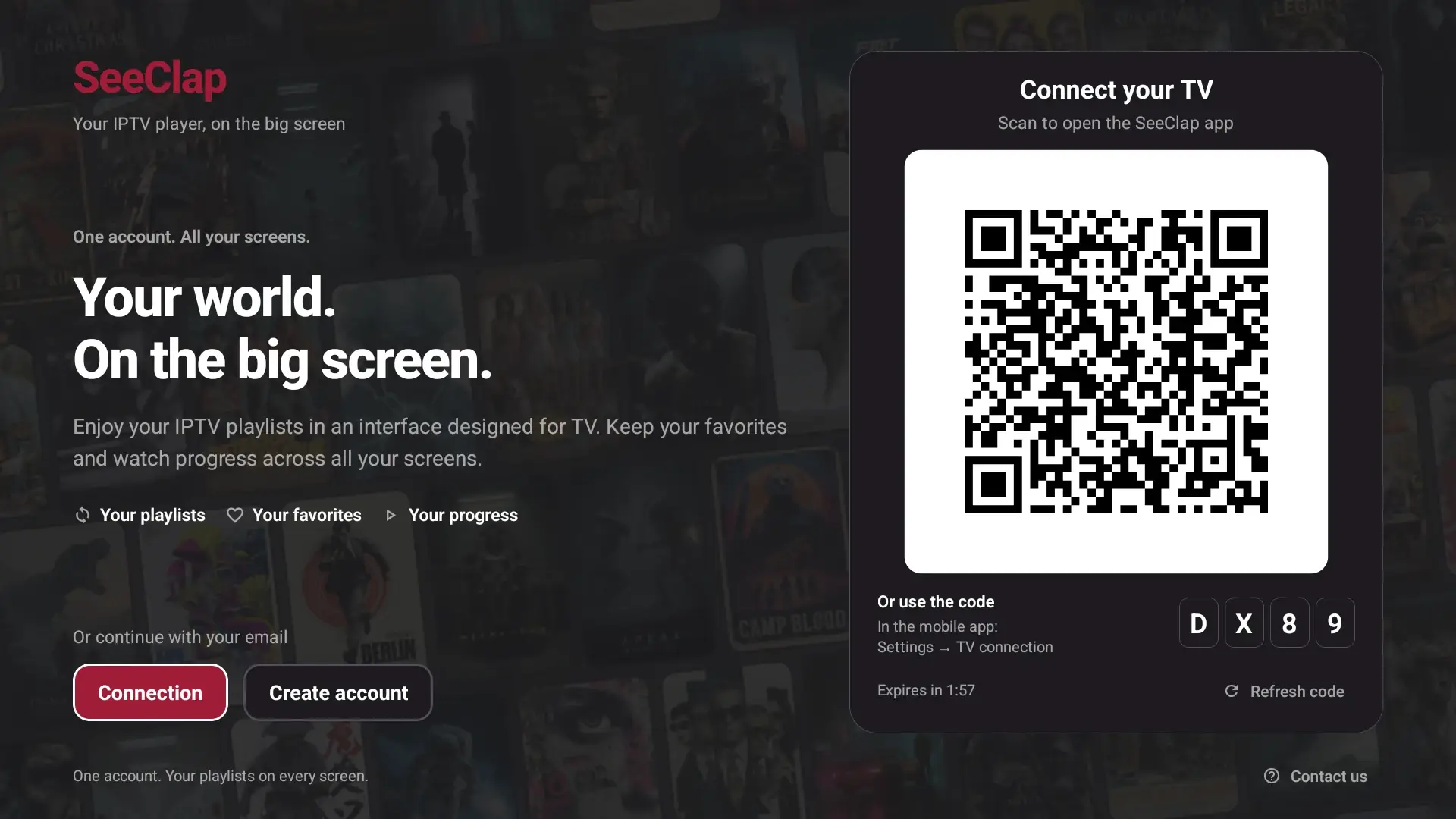
The SeeClap interface on a TV screen

Actual interface · illustrative content

Before you begin

This guide is for Android devices without Google Play, or where the Play Store refuses SeeClap. You need Android 7 or later and an ARM processor (32- or 64-bit), which most boxes, TVs, car head units and tablets have.

Google Play is installed on the device? Use the Google Play version instead. On an Amazon Fire TV, follow the Fire TV guide.

Your subscription follows you.

If Google Play is on the device, subscribe as you would in the Google Play version. Otherwise, subscribe on a phone with Google Play or an Apple device, then sign in to the same SeeClap account.

SeeClap is a player: it does not provide channels, movies or content subscriptions. Add your own authorized sources.

From the browser to your first launch.

Follow these steps on the device itself. Menu names may vary by model and Android version.

  1. Open the download page

    On the device, open the browser (Chrome or the built-in browser) and enter downloads.seeapps.studio/seeclap/android/. Tap “Download SeeClap” and wait for the download to finish.

    Browser → downloads.seeapps.studio/seeclap/android/ → Download SeeClap

  2. Allow the installation

    When you open the file, Android asks you to allow this source. Choose Settings, allow the browser to install apps, then go back. You are only asked once.

    Settings → Install unknown apps → Browser → Allow

  3. Install

    Choose Install, then Open. Already installed SeeClap from Google Play? This version installs over it and keeps your data.

    Install → Open

  4. Sign in

    Sign in to the same SeeClap account you use on your other devices, then find or add your sources.

    Sign in → Your playlists

On a box or a TV: Downloader

If the Downloader app is installed, open it, enter the code 2123077 in the address field and choose Go. On our page, select “Download SeeClap”, then continue from step 2, allowing Downloader.

Downloader → 2123077 → Go → Download SeeClap

https://downloads.seeapps.studio/seeclap/android/

The short code uses AFTVnews, which may show its own terms or consent screen. You can enter the full address in Downloader instead of the code.

What about future updates?

SeeClap checks for new versions when you open or resume the app, at most once every six hours. When an update is ready, choose “Update”, then confirm in the Android installer.

If Android asks, also allow SeeClap under “Install unknown apps”. Installation requires your confirmation; updates are not installed silently.

You can also download the APK again from the page: it installs over SeeClap. Keep the existing app installed to preserve its local data.

One subscription for all your screens.

Trial: 2 minutes per video. Premium follows your account.

Discover Premium

Need a hand?

Contact support
Is it the same app as on Google Play?

Yes: same app, same signature. You can switch from one to the other without uninstalling SeeClap or losing your data.

Android refuses to install it.

Check that the app that downloaded the file (browser or Downloader) is allowed to install apps, and that the device runs Android 7 or later with an ARM processor. If the problem continues, contact support.

I have an Amazon Fire TV: is this the right version?

No. On Amazon Fire TV, install the Fire TV version by following its guide, with the Downloader code 3621458.